Understanding what your students experience helps you guide them effectively. Here's what students see and can do when they use Lexa.
Key Information
Key Information
- Students join using your class code
- Work auto-saves as they type
- Lexa grades submissions instantly
- Students cannot see other students' work
- Desktop/laptop recommended for best experience
Student Dashboard
When students log in, they see:
- My Classes - All classes they've joined
- Worksheets - Assigned work from each class
- Revision - Study materials from your Knowledgebase
- Performance - Their skill strengths and areas to improve
- Announcements - Updates from their teachers
Joining Your Class
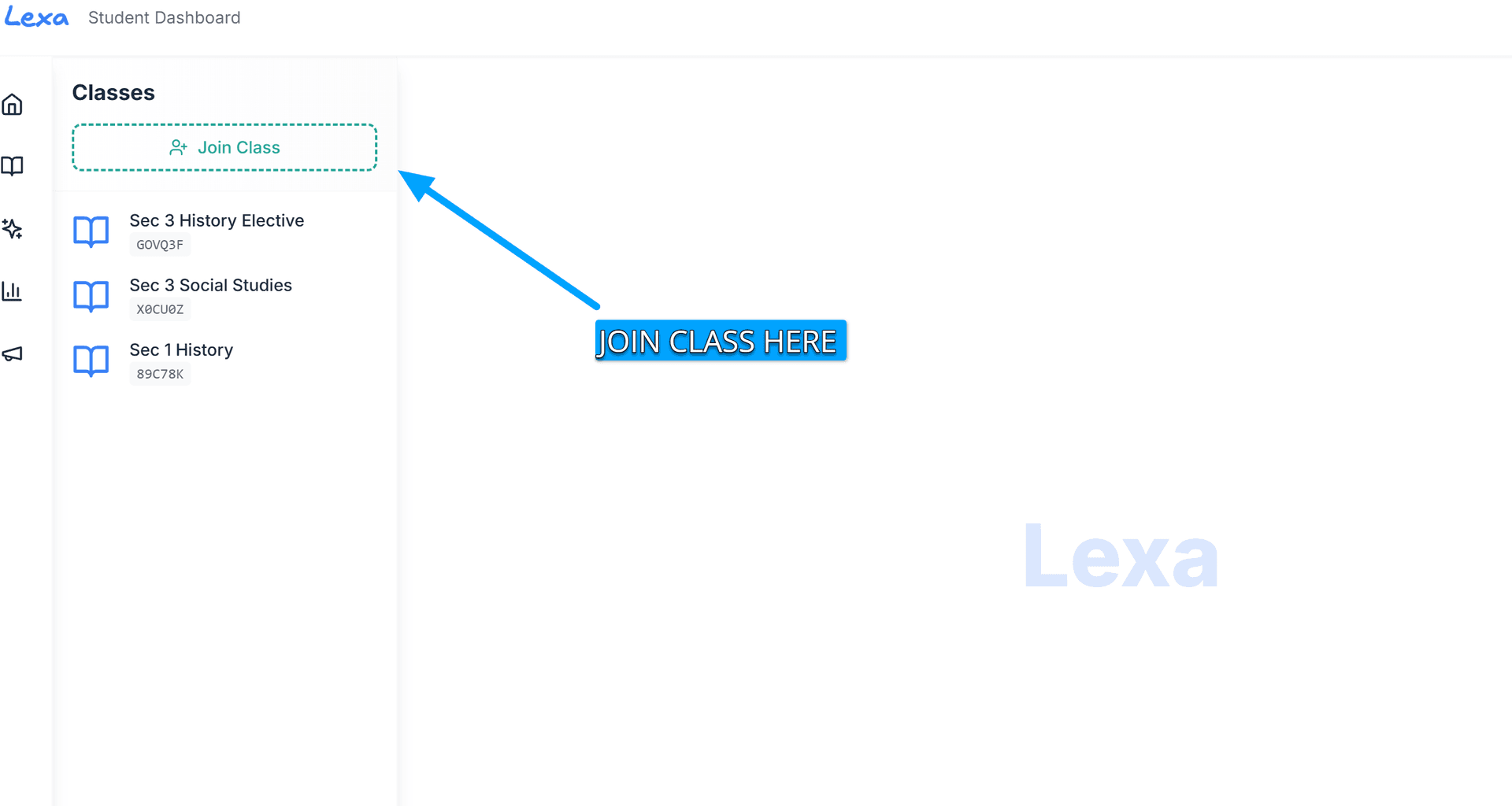
- Students create a Lexa account (free for students)
- Click Join Class on their dashboard
- Enter the 6-character Class Code you provide
- They're instantly enrolled and can see your worksheets
Tip: Display your class code during the first lesson or share it via email/LMS.
Opening and Working on Worksheets
Students can:
- View all worksheets you've uploaded to the class
- Open a worksheet to start working
- Add text boxes anywhere on the worksheet to type answers
- Navigate between pages by scrolling up or down
Auto-Save Feature
Work is automatically saved as students type—they don't need to worry about losing their progress. They can close the worksheet and come back later to continue.
Typing and Submitting Answers
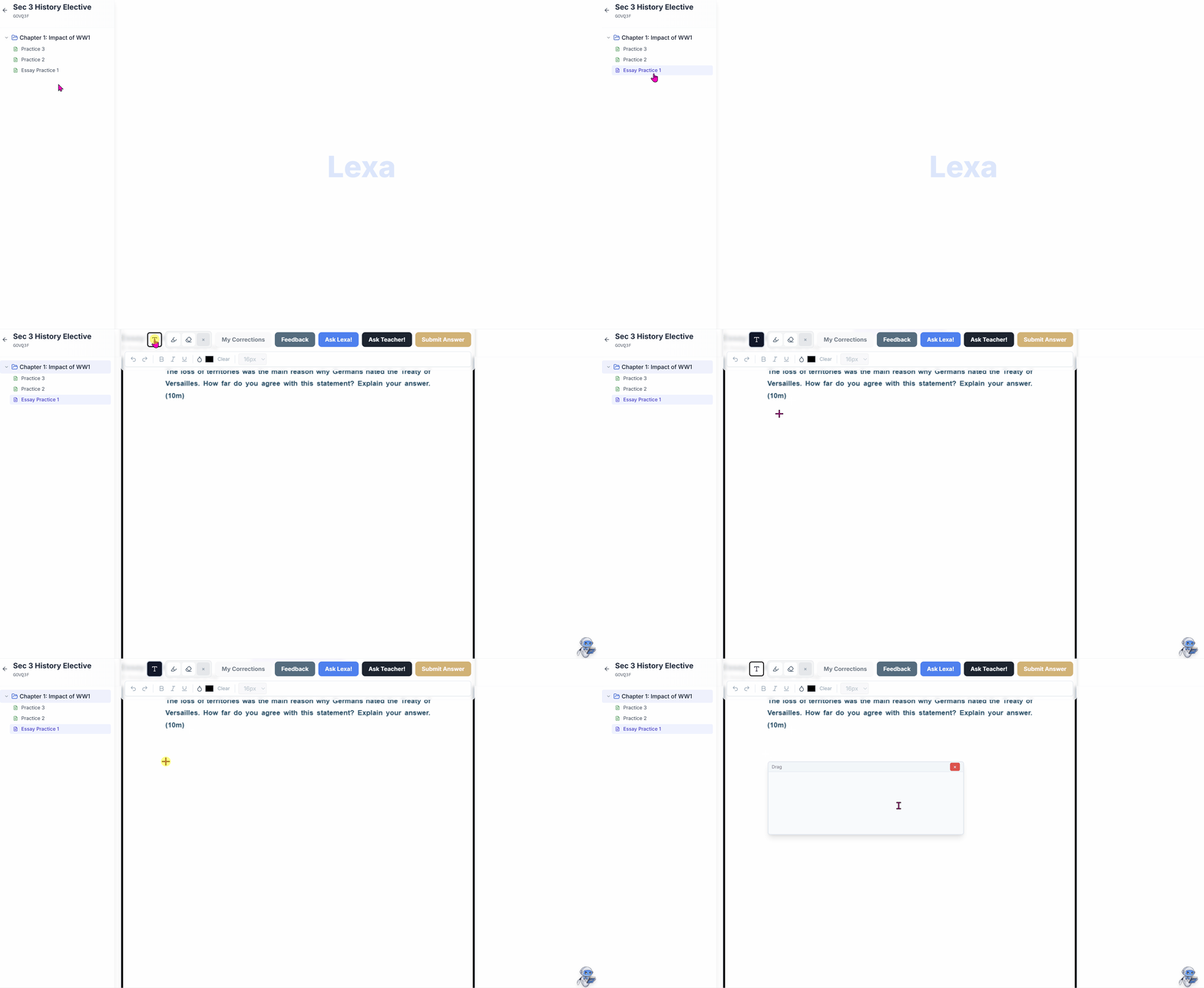
- Students click on the T icon above the worksheet to open a textbox
- Types their answer with reasoning and working
- Clicks Submit Answer when ready
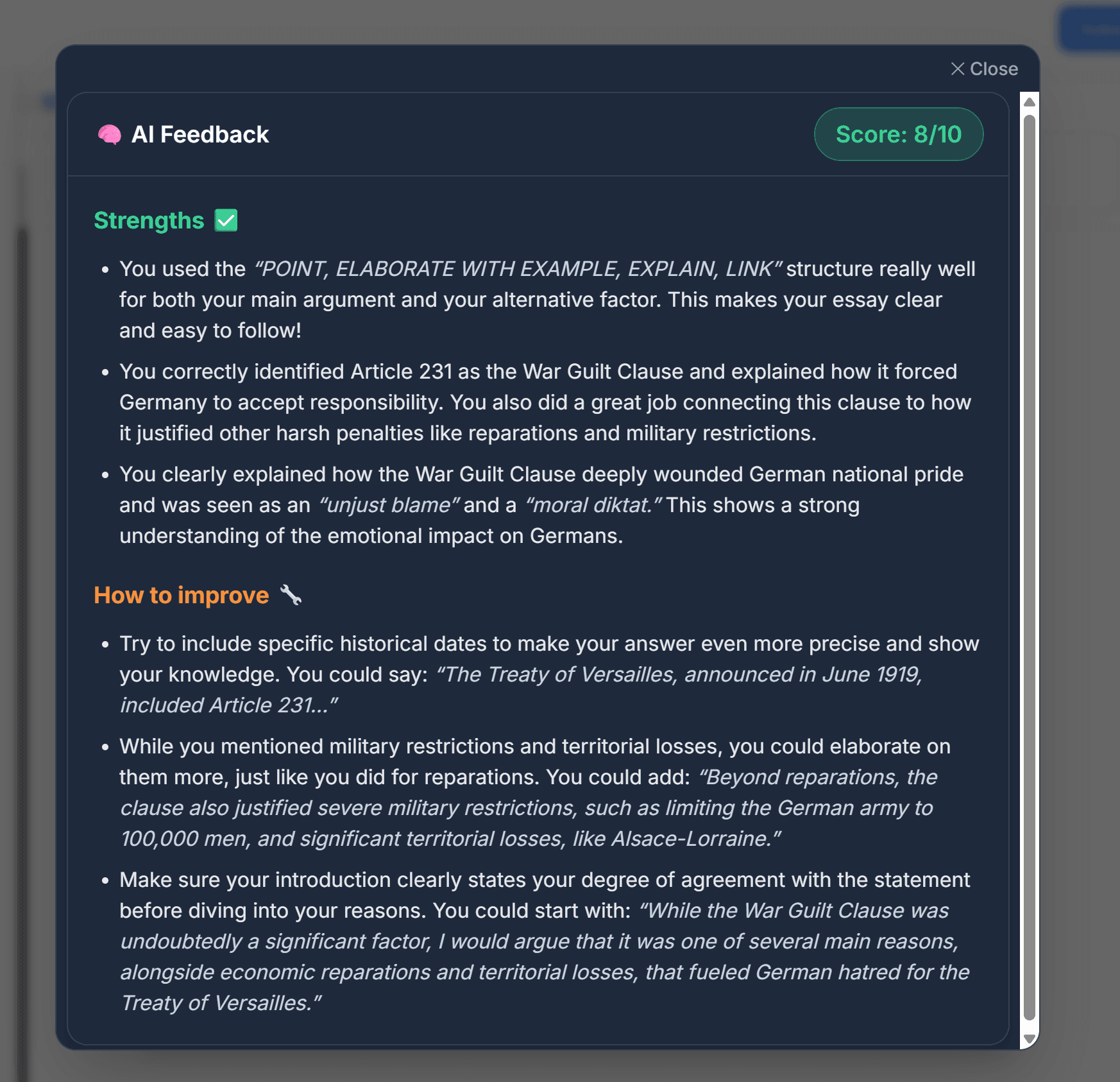
- Lexa grades the submission instantly using your Knowledgebase and rubrics
- Student receives feedback showing strengths and improvements
Important: Once submitted, students cannot edit their answer. They can only view the feedback.
Teachers can also give Feedback
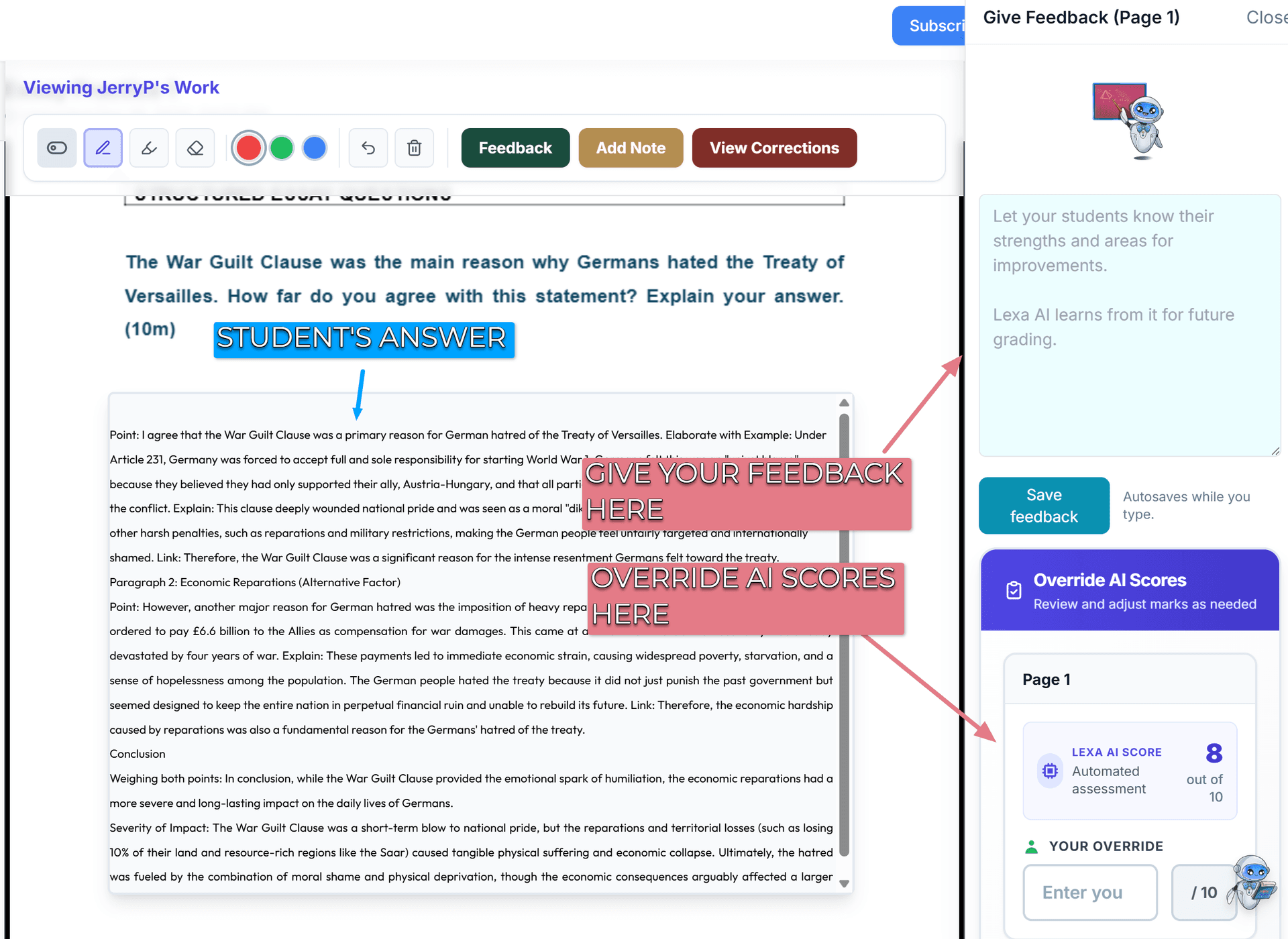
Students see two types of feedback:
- Lexa Feedback (Instant) - Generated when they submit, includes score, strengths, and improvement suggestions
- Your Feedback - You can give feedback anytime and override the score given by Lexa
Students receive notifications when you add feedback to their work.
What Students ❌ CANNOT Do
- Cannot create or manage classes (teacher only)
- Cannot see other students' work (privacy protected)
- Cannot edit answers after submission (maintains academic integrity)
- Cannot access Knowledgebase management (teacher only)
- Cannot delete worksheets or change class settings
Device Compatibility
Best experience:
- Desktop computers or laptops (full features, large screen for worksheets)
Also works:
- Tablets (good for reading, harder for extensive writing)