Your students can generate custom revision materials and flashcards from documents in your knowledgebase. This article explains how to prepare your documents for this feature.
Key Information
Key Information
- Files must be ≤ 2MB (converted PDF size)
- Add Level and Subject metadata after uploading
- Wait for status Ready before students can use a file
- Students can generate summaries and flashcards
- Split large files into smaller chapters
- Materials align with your curriculum
Document Requirements
To enable revision material generation, your documents need to meet these requirements:
File Size
- Files must be ≤ 2MB (converted PDF size; DOCX/PPTX are converted)
- Smaller files process faster and generate better results
- If your document is larger, consider splitting it into smaller chapters or sections
Metadata Setup

After uploading a document, you must add:
- Level: Select the appropriate grade or education level
- Subject: Choose the subject area (e.g., Mathematics, History, Science)
This metadata helps Lexa generate relevant and appropriate revision materials for your students.
How to Enable Documents for Revision
- Upload your document to the Knowledgebase (PDF, DOCX, or PPTX format)
- Wait for the status to show Ready (processing finished)
- Click the document and add the Level and Subject metadata fields
- Click Save to apply the metadata
- The document is now ready for students to use for revision generation
What Students Can Generate
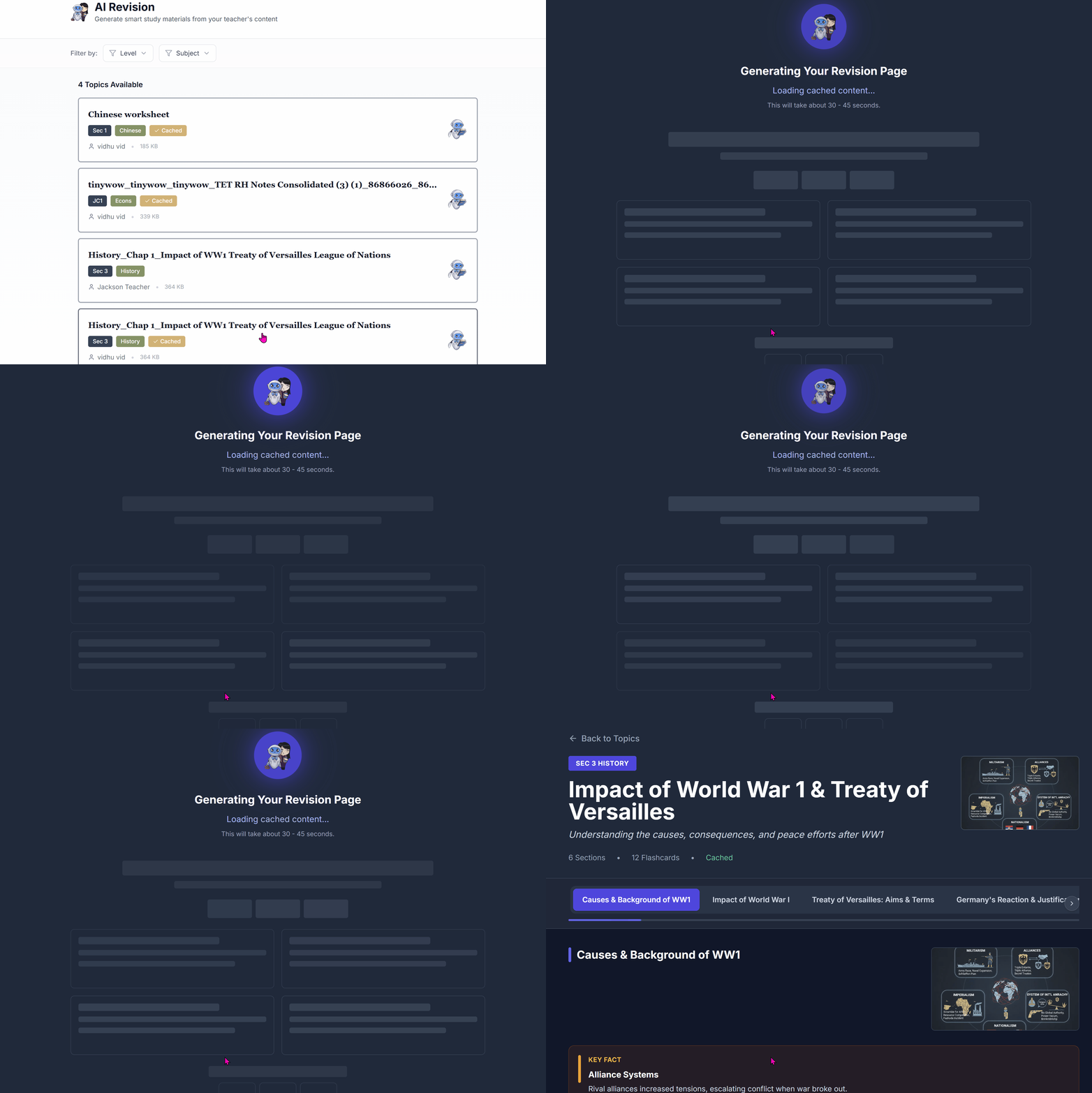
Once your documents are properly configured, students can create:
- Revision summaries: Condensed notes highlighting key concepts
- Flashcards: Question-and-answer cards for active recall practice
- Study guides: Structured learning materials based on your content
All generated materials are based directly on your uploaded teaching documents, ensuring they align with your curriculum.
Tips
- Upload documents by topic or chapter for more focused revision materials
- Use clear, well-structured documents for best results
- Keep documents current and update metadata as needed
- Students will see which documents are available for revision generation