Worksheets are the core of your teaching experience in Lexa. Upload them to your class so students can complete assignments and receive intelligent assistance.
Key Information
Key Information
- Accepted formats: PDF, DOC, DOCX
- Maximum file size: 10MB per worksheet
- Optional: Add video links and rubrics for each worksheet
- Shared upload limit with Knowledgebase documents
How to Upload a Worksheet
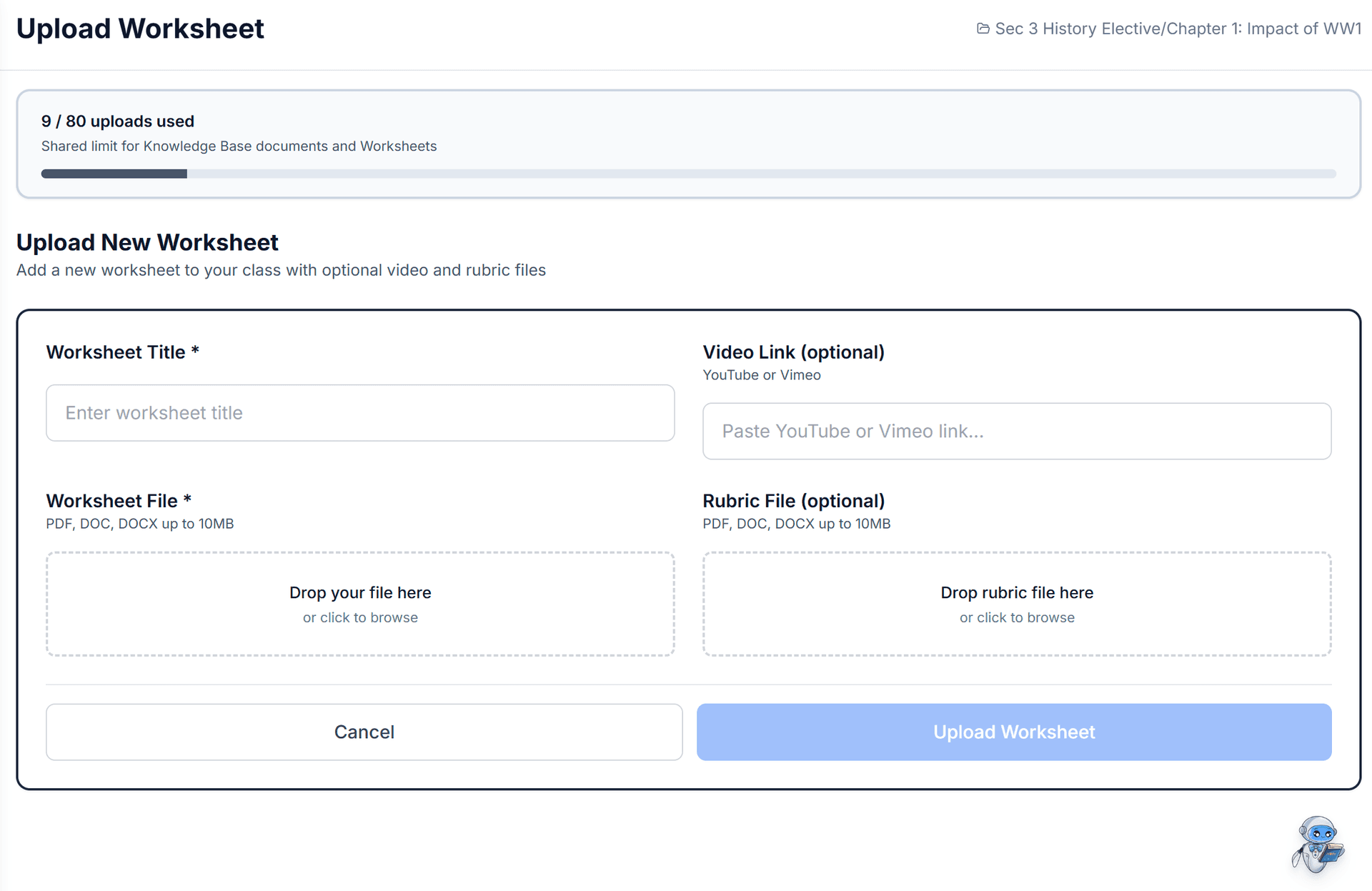
-
Navigate to My Classes from your dashboard sidebar.
-
Click on the class where you want to upload the worksheet.
-
Select the folder where the worksheet should be placed (or use the default folder).
-
Click the Upload Worksheet button.
-
Fill in the following details:
-
Worksheet Title (required): Give your worksheet a clear, descriptive name (e.g., "Practice 4" or "Chapter 3: Photosynthesis")
-
Video Link (optional): Add a YouTube or Vimeo link if you have an instructional video for this worksheet
-
Worksheet File (required): Drop your PDF, DOC, or DOCX file (up to 10MB)
-
Rubric File (optional): Upload a scoring rubric (PDF, DOC, or DOCX up to 10MB) to help guide student work and Lexa feedback
-
-
Click Upload Worksheet to complete the process.
File Requirements
- Supported formats: PDF, DOC, DOCX
- Maximum size: 10MB per file
- Quality: Clear, readable text and images work best
- DOC/DOCX conversion: Word files are automatically converted to PDF
Upload Limits
You have a shared upload limit that tracks both Knowledgebase documents and Worksheets. You can see your current usage at the top of the upload page:
- Example: "10 / 250 uploads used"
- This limit ensures optimal performance and storage
Optimizing Your Worksheets
Best Practice: One Question Per Page
Lexa works best when worksheets have one question per page. This allows:
- More accurate assistance for each specific question
- Better page-by-page navigation for students
- Clearer feedback and annotations from you
- Improved question detection and skills tagging
Multiple Questions Per Page
Lexa can still work with multiple questions per page, but:
- Assistance may be less precise
- Question detection might group items together
- Students may need more guidance navigating between questions
- Consider using clear numbering and spacing
Tips for Better Results
- Use clear headings and question numbers
- Ensure diagrams and images are visible and high-quality
- Avoid overly complex layouts with multiple columns
- Leave adequate white space between questions
- Test with a sample worksheet first to see how Lexa processes it
Adding Videos
Adding an instructional video helps students:
- Review concepts before starting the worksheet
- Watch explanations when they're stuck
- Learn at their own pace
Supported platforms: YouTube and Vimeo
Adding Rubrics (Optional)
Rubrics help both you and Lexa:
- For you: Consistent grading criteria across students
- For Lexa: Better understanding of how to guide students toward the right approach
- For students: Clear expectations for their work
Upload rubrics as PDF, DOC, or DOCX files (up to 10MB).
Note: Lexa will use both rubrics and relevant documents in the Teacher Knowledgebase to guide and grade students.
After Uploading
Once uploaded, your worksheet:
- Appears in the selected class folder
- Becomes visible to all students in that class
- Is automatically processed by Lexa to detect questions and skills
- Can be assigned to students who will receive notifications
Managing Uploaded Worksheets
- Edit details: Update title or video link anytime
- Move worksheets: Organize them into different folders
- Delete worksheets: Remove outdated or incorrect uploads
- View analytics: See student progress and completion rates
Troubleshooting
File too large?
- Compress your PDF using online tools
- Reduce image quality in your document
- Split large worksheets into smaller parts
Upload failing?
- Check your file format (PDF, DOC, or DOCX only)
- Ensure the file isn't corrupted
- Verify you haven't reached your upload limit
Questions not detected properly?
- Ensure clear formatting with numbered questions
- Use one question per page when possible
- Check that text is selectable (not just images)
Next Steps
After uploading your first worksheet:
- Invite students to your class
- Add teaching materials to your Knowledgebase
- Watch students work in real-time using the spectate feature